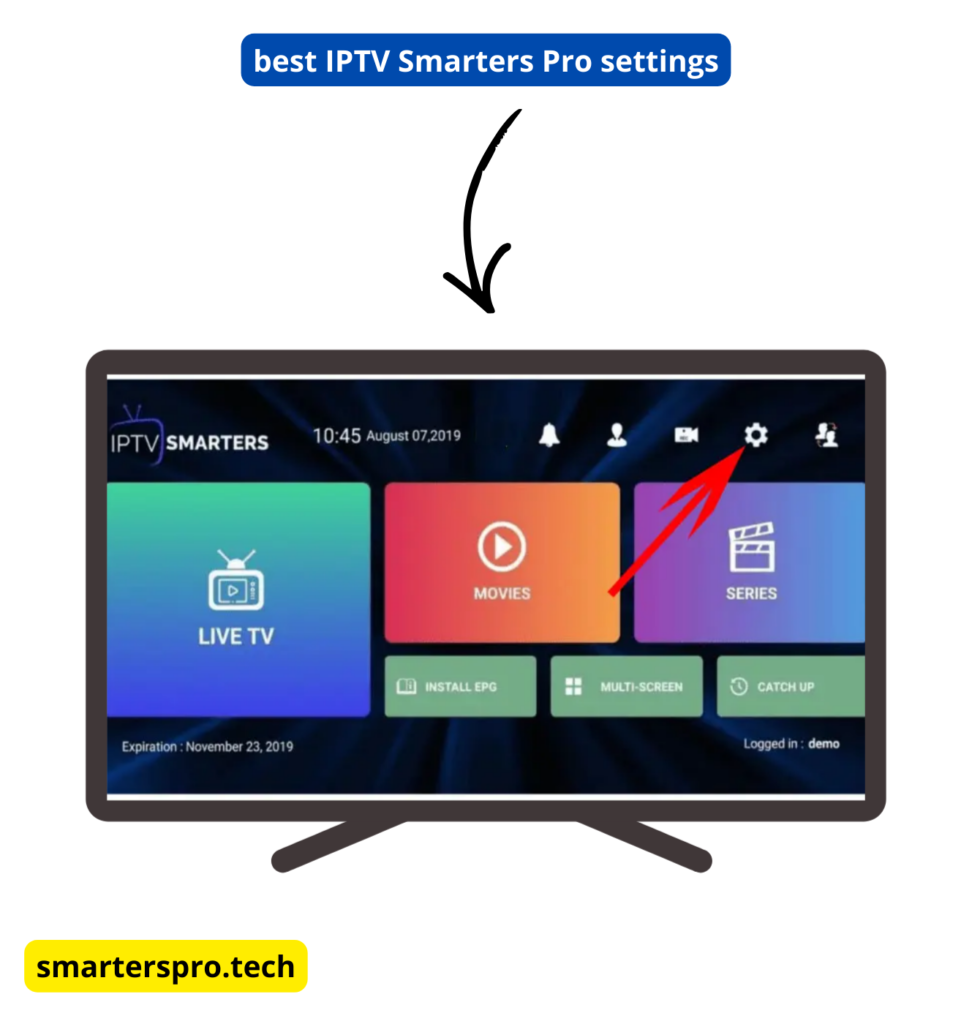
Using the best IPTV Smarters Pro settings can greatly improve streaming quality, reduce buffering, and provide a smoother viewing experience. While IPTV performance also depends on your internet connection and IPTV service, correct app settings play a major role.
This guide explains the recommended IPTV Smarters Pro settings for smooth streaming on
Android,
Firestick,
Smart TV,
Windows,
and
macOS.
Important: IPTV Smarters Pro is a media player only. It does not provide channels or streaming services.
Recommended IPTV Smarters Pro Settings

1. Use Xtream Codes API (If Available)
Xtream Codes API
is more stable than
M3U playlists
and automatically handles
EPG
and content organization.
Recommended: Xtream Codes API login
Avoid if possible: M3U playlist only (manual setup)
2. Enable Hardware Acceleration
Go to Settings → Player Settings
- Enable Hardware Acceleration
- Select Auto or Hardware Decoder
This allows the app to use your device’s GPU for smoother playback.
3. Set Default Player Correctly
In Player Selection Settings:
- Try the Built-in Player first
- If issues occur, switch to an External Player (VLC or MX Player)
External players can help resolve buffering and codec issues.
4. Adjust Buffer Size
Go to Settings → Player Settings
- Set Buffer Size to Medium or Large
- Avoid Small buffer if you experience buffering
Larger buffers help with unstable internet connections.
5. Disable Unnecessary Animations
On some devices (especially Firestick and Android TV):
- Disable animations
- Enable Simple UI mode if available
This reduces CPU usage and improves app responsiveness.
6. Refresh EPG Regularly
Outdated EPG data can slow down Live TV navigation.
Go to Settings → EPG → Refresh EPG
Enable Auto-Refresh if available.
7. Check Internet Speed
For smooth streaming, recommended speeds are:
- SD: 5 Mbps
- HD: 10 Mbps
- Full HD / 4K: 25 Mbps or higher
Use a wired Ethernet connection when possible for the best performance.
Frequently Asked Questions – IPTV Smarters Pro Settings
What are the best IPTV Smarters Pro settings to reduce buffering?
The best settings include enabling hardware acceleration, increasing buffer size to medium or large, and using Xtream Codes API instead of M3U playlists when available.
Does IPTV Smarters Pro buffering depend on settings or internet speed?
Both matter. Proper settings improve performance, but a stable and fast internet connection is essential for smooth streaming.
Should I use the built-in player or an external player?
Start with the built-in player. If buffering or playback issues continue, using an external player like VLC or MX Player can improve performance.
What buffer size is best in IPTV Smarters Pro?
Medium or large buffer size is recommended, especially for unstable internet connections. Small buffer size may cause frequent buffering.
Does hardware acceleration improve streaming quality?
Yes. Enabling hardware acceleration allows the app to use your device’s GPU, resulting in smoother video playback on most devices.
Why does IPTV Smarters Pro still buffer after changing settings?
Buffering can still occur due to IPTV server issues, overloaded servers, or slow internet speeds. App settings cannot fix provider-side problems.
Do these IPTV Smarters Pro settings work on all devices?
Yes. These settings apply to Android, Firestick, Smart TV, Windows, and macOS, though menu names may vary slightly by platform.
How often should I refresh EPG for better performance?
Refreshing EPG once every few days is enough. Frequent refreshes are not required unless guide data is missing or outdated.
Is IPTV Smarters Pro free to use with these settings?
Yes. All recommended settings work with the free version of IPTV Smarters Pro. The premium version is optional and removes ads.
Can IPTV Smarters Pro settings fix app crashes?
Sometimes. Disabling hardware acceleration, lowering buffer size, or reinstalling the app can help reduce crashes.